Map renderers reference: Common
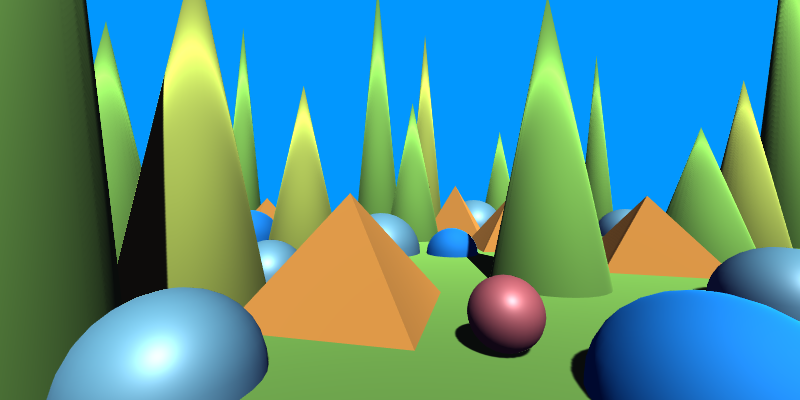
This image shows the original scene without any post processing.
Common Properties
The following properties are shared by all map renderers, regardless of map type or render pipeline.
| Property | Description |
|---|---|
| Render Target | The render texture the map is written into. |
| Layer Mask | Which object layers are included in the map. Defaults to Everything. |
| Update Render List Each Frame | Refreshes the renderer list every frame in play mode. Disable for better performance and call RefreshRendererList manually when the scene changes. |
| Update Render List Each Frame (Editor) | Same as above, for edit mode. |
| Source Camera (Built-in only) | The scene camera whose settings are copied for map rendering. |
| Update Camera Each Frame (Built-in only) | Re-syncs the internal render camera to the source camera every frame. Enable if the source camera is animated or moved by script. |
Depth Map
Renders a depth map from the camera’s perspective, encoding distance from the camera into grayscale. Supports both linear and logarithmic depth encodings, making it suitable for debugging depth, driving effects like fog or outlines, or serving as an intermediate buffer for other shaders.
| Property | Range | Description |
|---|---|---|
| Encoding | {0, 1} | Selects the depth encoding mode. 0 = Linear depth, 1 = Logarithmic depth |
| Near Plane | (0, ∞) | Camera near-plane distance used for depth normalization |
| Far Plane | (0, ∞) | Camera far-plane distance used for depth normalization |
Encoding Modes
Linear Depth
Depth is mapped linearly from the near plane to the far plane.
Useful for simple visualizations and effects where uniform depth distribution is acceptable.Logarithmic Depth
Depth is mapped using a logarithmic curve, allocating more precision close to the camera.
This is especially useful for large scenes where linear depth would compress most values near black.
Tip
- Logarithmic depth is often preferable when visualizing or processing large depth ranges.
- Linear depth is easier to reason about numerically and may be better for simple threshold-based effects.
- The near and far plane values must match the camera settings used to render the scene.


ID Map
Renders a per-object ID map by assigning each renderer a unique, deterministic color. Each object is filled with a solid color derived from its instance ID, making this map useful for object selection, masking, outlining, and other object-aware effects.
The color is computed on the CPU and passed to the shader via a material property block, ensuring consistency across frames without requiring per-pixel computation.
(This effect has no adjustable shader properties.)
How It Works
- Each renderer’s
InstanceIDis hashed into a pseudo-random RGB color. - The hashing is deterministic: the same object will always receive the same color within a session.
- The entire object is rendered with a constant color, producing flat, clearly segmented regions.
Tip
- This map is ideal as an intermediate buffer for effects such as outlines, object highlighting, selection masks, or editor visualization tools.
- Colors are not guaranteed to be perceptually distinct for very large numbers of objects, but collisions are rare for typical scene sizes.

Normal Map
Renders a normal map based on the world-space surface normals of the geometry. Normals are encoded into RGB colors, making this shader useful for debugging geometry, driving stylized effects, or supplying auxiliary normal data to other rendering passes.
Two encoding modes are supported: a direct RGB mapping and a hemispherical variant that folds normals toward a reference direction.
| Property | Range | Description |
|---|---|---|
| Encoding | {0, 1} | Selects the normal encoding mode. 0 = Raw normals, 1 = Hemispherical flip |
Encoding Modes
Raw Normals
World-space normals are mapped directly to color using the transform
(normal * 0.5) + 0.5.
This produces the familiar RGB normal-map visualization.Hemispherical Normals
Normals are first folded toward a fixed reference vector before encoding.
If a normal points away from the reference direction, it is flipped, causing both directions to map to the same hemisphere.This is useful when directionality matters only up to sign, such as when collapsing opposing normals into a single lobe.
Tip
- This shader encodes world-space normals. Rotating or scaling objects will affect the output.
- The hemispherical encoding folds normals relative to a fixed reference direction, not the camera.
- Raw normal encoding is ideal for debugging geometry and validating normal transforms.


UV Map
Renders the mesh’s UV coordinates directly to color, making UV layout and distortion
easy to inspect. The U coordinate is written to the red channel and V to the green channel,
with values wrapped into the [0,1) range.
Several optional adjustments allow the UVs to be modified based on material tiling, object distance to the camera, or object scale.
| Property | Range | Description |
|---|---|---|
| Main Texture | 🖼️ | Reference texture used only for material tiling and offset. |
| UV Scale Offset | — | Scale and offset applied to UVs when material tiling adjustment is enabled. |
Background
Pixels not covered by geometry are rendered using a dedicated UV background shader. The background renders a procedural UV pattern using its own independent scale and offset, allowing you to control how empty areas of the map appear.
| Property | Range | Description |
|---|---|---|
| Background UV Scale | — | Scales the UV coordinates used for the background pattern. |
| Background UV Offset | — | Offsets the UV coordinates used for the background pattern. |
The background UVs are generated independently of scene geometry and are useful for:
- Visual reference in empty regions
- Diagnosing UV continuity at geometry boundaries
- Maintaining consistent UV context across the entire render target
UV Adjustments
The following adjustments are controlled via shader variants and may be enabled from either the map renderer (BI) or map renderer feature (URP):
Adjust by Material Tiling
Applies the material’s texture scale and offset (_MainTex_ST) to the UVs. This matches how the texture would normally be sampled in a standard shader.Adjust by Object Distance
Scales UVs inversely with the object’s distance from the camera. Objects farther away produce denser UV patterns, which can be useful for debugging scale-dependent effects.Adjust by Object Scale
Scales UVs based on the average world-space scale of the object. This helps visualize how non-uniform object scaling affects UV-driven effects.
After all adjustments, the UVs are wrapped using frac, producing a repeating pattern.
Tip
- This shader is ideal for effects that supports UV mapping. This allows an effect that would normally stick to the camera to stick to objects instead.
- Although this shader can be used to drive other properties, the seems caused by wrapping may make it unsuitable.

